When you delete things off of a mobile device (like a phone or digital camera), the file goes to your phone’s recycle bin (just like on a desktop computer or laptop), typically an invisible folder named .trashes or .trash. There, it continues to take up the same amount of memory storage as it did before you ‘deleted’ it. To empty your mobile device’s recycling bin, plug your phone into your desktop or laptop via USB as a memory device, right click on your desktop/laptop’s recycling bin/trash, and tell it to empty your recycling bin/empty trash. Your computer will empty all .trash/.trashes folders, including the one on your phone, actually deleting the files permanently this time, freeing up your phone/camera’s memory space. Reblog to save a life.
(I know this works on MAC with my Andriod, it’s not too far a stretch to do the same on Windows and/or with other phones as well. In fact, it should be easier to do on Windows since Windows Explorer is more conducive to finding hidden folders.)
FINDING THIS RANDOM POST ON MY DASHBOARD GAVE ME THE BEST ANSWER TO SHIT I’VE BEEN GOOGLING ABOUT FOR MONTHS!!!
y’all didn’t even add a tutorial of how to do this so imma put one right here
1. type in cmd.exe into your windows search and right click on Command Promt search result and select “Run as Administator”. 2. Type/Copypase in
net.exe stop “Windows Search” and make sure Windows Search is in quotations. It should then respond saying “The Windows Search service is stopping” and then tell you it’s stopped.
This is only a temp fix though, if you want it switched off permanently then do THIS:
1. Press the Windows key + R at the same time and type in services.msc.
2. Scroll until you find Windows Search and double click it to enter its Properties window.
3. Change the Startup type to Disabled. Apply this change and you can exit out.

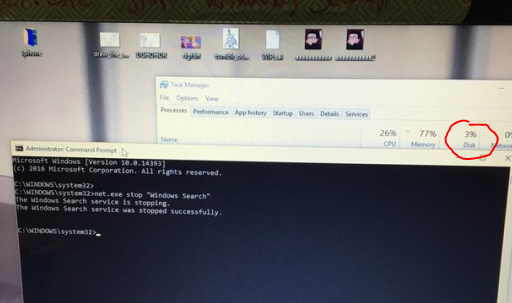
 just moving along like everyone else